Sizing up #
- SizeUp was a great keyboard-driven Mac window manager — but it’s getting a bit long in the tooth now
- Hammerspoon replaces it in 5 minutes, free, with a small bit of Lua
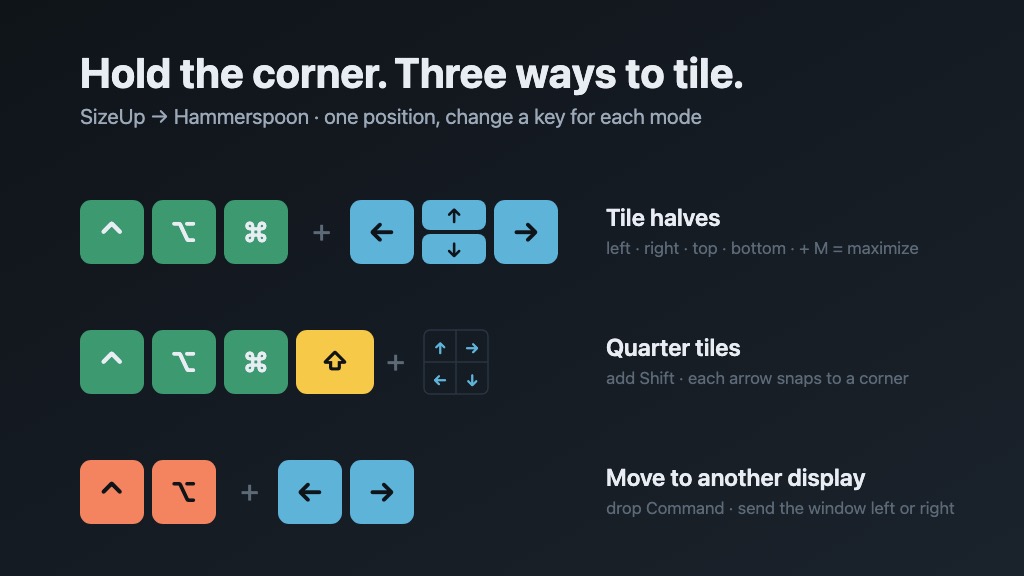
- The base is one position: the three bottom-left keys — Control ⌃, Option ⌥, Command ⌘
- Then change one key per mode, and tap an arrow:
- ⌃⌥⌘ + arrow → tile halves (left / right / top / bottom; ⌃⌥⌘ + M = maximize)
- ⌃⌥⌘⇧ + arrow → quarter tiles (each arrow → a corner)
- ⌃⌥ + ← / → → move the window to another display
- Same position every time — your hand never leaves the corner
- Also worth a look: Rectangle (zero config) if you’d rather not touch Lua
SizeUp had a great run #
SizeUp was a paid Mac window manager that did one thing perfectly: keyboard shortcuts to snap windows left, right, full-screen, and quarters. I happily paid for it years ago after a friend introduced me to it.
It changed how I used my Mac daily. No more dragging window edges around. Just muscle memory.
The problem: SizeUp requires Rosetta on Apple Silicon. I don’t want to install Rosetta for one app on an M5 Mac. The developer (Irradiated Software) has gone quiet — the app still technically works via Rosetta, but it’s not getting updates.1
Most people still wrestle with window management #
It’s surprising how many technical people still drag-resize windows by hand.
- macOS has had native split-screen since El Capitan (2015), but it’s clunky — hold the green button, wait, choose a side, pick the other window
- macOS Sequoia (2024) added better tiling with drag-to-edge snapping, but it’s still limited compared to a keyboard-driven tool
- Windows and Linux users: hold the Windows/Super key + arrow keys for basic snapping. Built-in and honestly pretty good.
If you’re on Mac and don’t have a window manager, fix that today. It takes 5 minutes.
The whole trick: one position #
The magic isn’t the shortcuts — it’s that you never move your hands. The three modifier keys you hold live together at the bottom-left corner of every Mac keyboard.
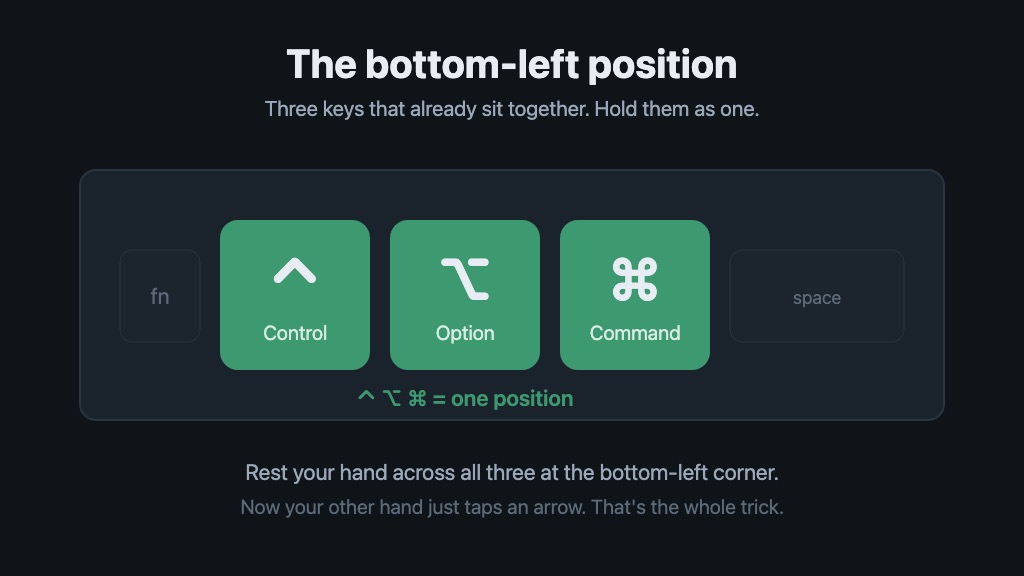
- Left hand rests across Control ⌃ + Option ⌥ + Command ⌘ — one position
- Right hand taps an arrow for the direction you want
- ← left half, → right half, ↑ top half, ↓ bottom half (⌃⌥⌘ + M to maximize)
From there, you change exactly one key for each mode — your hand never leaves the corner:
- Add Shift (
⌃⌥⌘⇧) → quarter tiles, where each arrow snaps to a corner - Drop Command (
⌃⌥) → move the window to the display on the left or right
No new shortcuts to memorize. Hold the corner, change a key, point a direction.
Hammerspoon: the 5-minute replacement #
Hammerspoon is a free, open-source, scriptable Mac automation tool.2 It uses Lua for configuration — a simple scripting language you don’t need to learn deeply. Window management is just one of many things Hammerspoon can do, but it’s the killer use case.
Install:
brew install hammerspoonConfigure — create ~/.hammerspoon/init.lua:
local hyper = {"ctrl", "alt", "cmd"}          -- halves + maximize
local quad  = {"ctrl", "alt", "cmd", "shift"} -- quarters (add Shift)
local toMon = {"ctrl", "alt"}                  -- move to another display

- On NON-primary displays, shave a gap off the bottom so a snapped window
- never sits flush against the edge and drags the Dock over. [see note below]
local GAP = 100

- Usable area of a screen. screen:frame() already excludes the menu bar and
- Dock; we shrink it further only on secondary monitors.
local function usable(screen)
  local m = screen:frame()
  if screen ~= hs.screen.primaryScreen() then m.h = m.h - GAP end
  return m
end

- Snap the focused window to a fraction of the usable area.
local function snap(x, y, w, h)
  return function()
    local win = hs.window.focusedWindow()
    if not win then return end
    local m = usable(win:screen())
    win:setFrame({ x = m.x + m.w * x, y = m.y + m.h * y, w = m.w * w, h = m.h * h })
  end
end

- Halves + maximize
hs.hotkey.bind(hyper, "Left",  snap(0,   0,   0.5, 1))
hs.hotkey.bind(hyper, "Right", snap(0.5, 0,   0.5, 1))
hs.hotkey.bind(hyper, "Up",    snap(0,   0,   1,   0.5))
hs.hotkey.bind(hyper, "Down",  snap(0,   0.5, 1,   0.5))
hs.hotkey.bind(hyper, "M",     snap(0,   0,   1,   1))

- Quarters (clockwise: Up = top-left, Right = top-right, Down = bottom-right, Left = bottom-left)
hs.hotkey.bind(quad, "Up",    snap(0,   0,   0.5, 0.5))
hs.hotkey.bind(quad, "Right", snap(0.5, 0,   0.5, 0.5))
hs.hotkey.bind(quad, "Down",  snap(0.5, 0.5, 0.5, 0.5))
hs.hotkey.bind(quad, "Left",  snap(0,   0.5, 0.5, 0.5))

- Move the window to the next / previous display
hs.hotkey.bind(toMon, "Right", function()
  local win = hs.window.focusedWindow()
  if win then win:moveToScreen(win:screen():next()) end
end)
hs.hotkey.bind(toMon, "Left", function()
  local win = hs.window.focusedWindow()
  if win then win:moveToScreen(win:screen():previous()) end
end)
That’s it. Reload the config (Hammerspoon menu bar → Reload Config) and you’re done.
The bottom gap on secondary monitors: notice GAP and usable() above. macOS shows the Dock on whichever display your pointer reaches the bottom edge of, and a window snapped flush to the bottom of a second monitor makes it far too easy to summon the Dock onto that screen by accident. Shaving a gap off the bottom of non-primary displays keeps every window just shy of the edge, so the Dock stays put. There’s no clean way to pin the Dock to one display — the gap is the pragmatic fix.3
Other options worth knowing about #
- Rectangle (free, open-source) — closest to SizeUp’s simplicity. Keyboard shortcuts out of the box, no config needed. If you don’t want to touch Lua, start here.4
- Magnet ($4.99, App Store) — polished, popular, no config. Similar to Rectangle.
- Amethyst — automatic tiling window manager, i3-style. More opinionated.
- Hammerspoon wins if you want full control and don’t mind a little Lua.
Other platforms #
- Windows: Win+Arrow keys built-in. PowerToys FancyZones for advanced layouts.
- Linux: Most desktop environments have keyboard shortcuts built-in. i3/Sway for tiling purists.
Appendix #
VSCode/Cursor tip: Set Ctrl+Cmd+Arrow to move editor tabs between split groups. Pairs nicely with window snapping for a fully keyboard-driven layout.
Footnotes #
- SizeUp by Irradiated Software. Still available at http://www.irradiatedsoftware.com/sizeup/ for $12.99, but requires Rosetta 2 on Apple Silicon and hasn’t been updated for native ARM support. ↩
- Hammerspoon — free, open-source macOS automation tool. Lua-based config. https://www.hammerspoon.org/ ↩
- The root cause is the "Displays have separate Spaces" behavior (System Settings → Desktop & Dock). With it on — which it is by default, and which you want if you ever full-screen apps per monitor — macOS treats each display as its own Space and parks the Dock on whichever screen your pointer last hit the bottom of. There’s no setting to lock the Dock to one display while keeping per-monitor full-screen Spaces, so a small bottom gap on secondary screens is the practical workaround. ↩
- Rectangle — free, open-source window manager for macOS. https://rectangleapp.com/ ↩